Adding ThunderLib to Your Robot Project
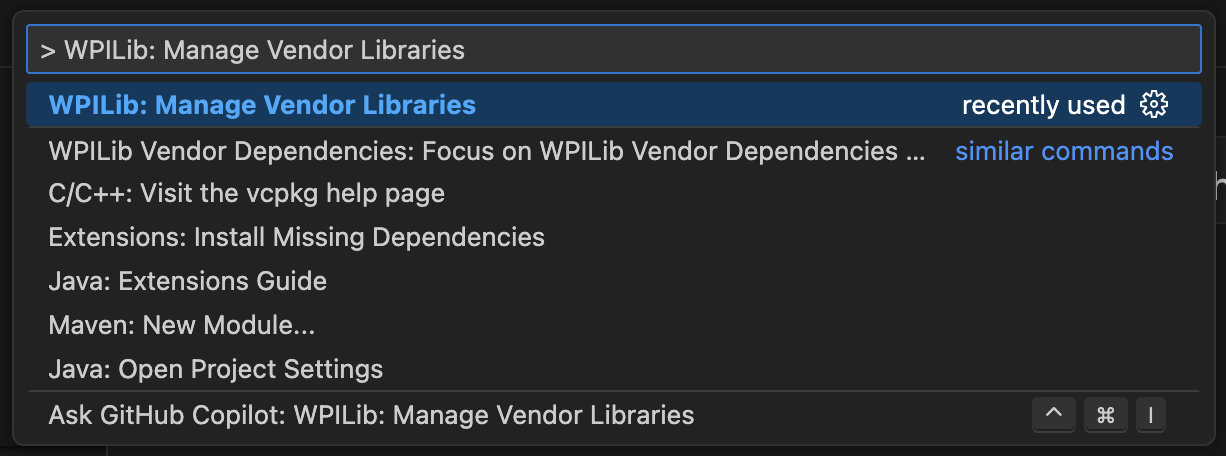
- In WPILib VSCode, open the Command Palette (Ctrl+Shift+P) and select WPILib: Manage Vendor Dependencies
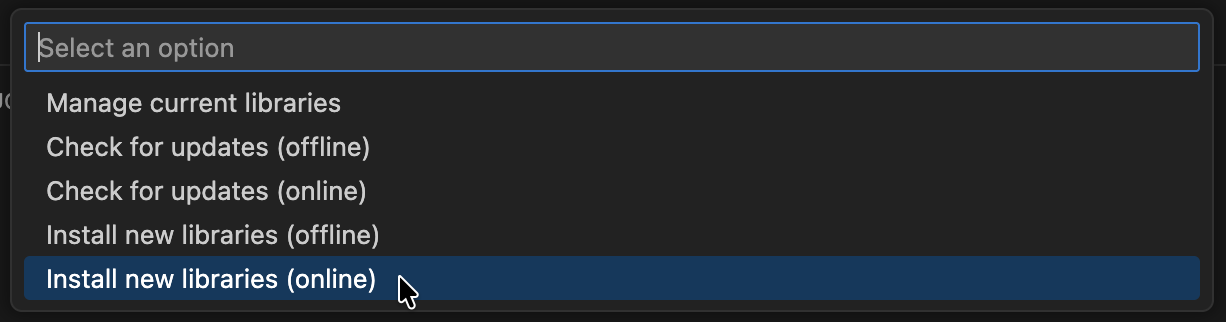
- Select Install new libraries (online).
- In the box, paste the ThunderLib vendor URL and press Enter:

Now you should see a file named ThunderLib2026.json in the vendordeps folder of your robot project, and ThunderLib will be available to use in your robot code. You may need to rebuild your project for VSCode intellisense to recognize the new library.